
Step-by-Step: Setting Up Root Domains & Subdomains in Your CRM
Launching a professional online presence starts here. Connecting your custom domain to your website or funnel inside Your CRM is a smooth and important step. Whether you’re using a main domain like yourdomain.com or a subdomain like offers.yourdomain.com, this guide makes the manual setup easy and clear—no tech stress involved.
Just getting started with buying a domain? Check out this step-by-step blog to guide you through it.
Step 1: Add Your Domain In Your Digital Business Suite
Go to: Settings.

Go to Domains.
Click on Manage button.

Click on connect

Click the “Connect” button next to where you want to link your domain.
For example, if you're connecting it to a funnel, simply click the Connect button right in front of Funnel.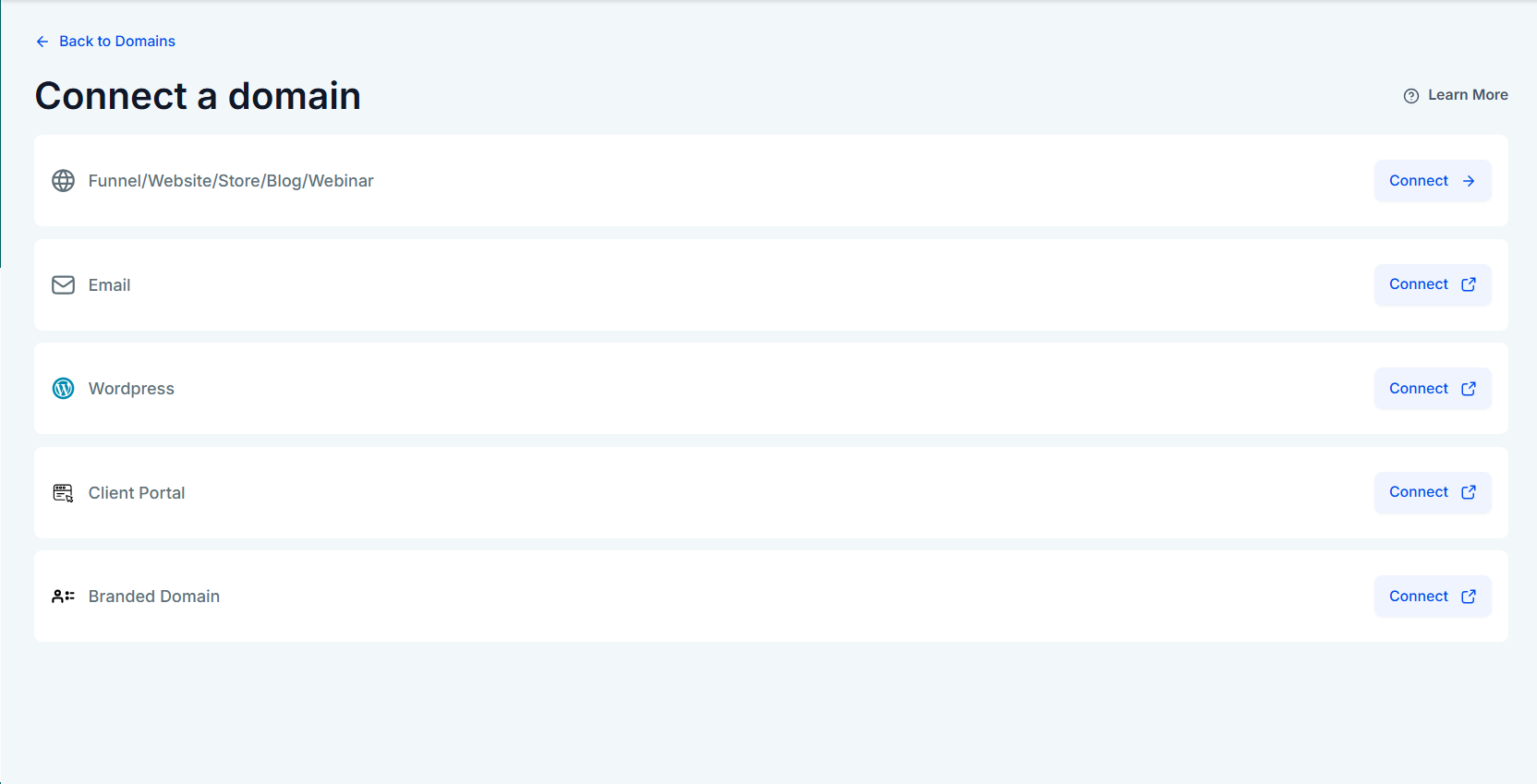
Type in your domain and hit Continue.


Once you reach the setup step, you’ll see two options. You can either enter your domain details manually, where the system will display the exact CNAME value that needs to be added to your domain provider, such as GoDaddy or Namecheap. Or, you can click Continue to proceed with automatic setup. If your domain registrar is supported, the system will handle the configuration for you—just follow the on-screen prompts. From the setup box, simply copy each DNS record shown and add it to your domain's DNS settings.

Step 2: Set Up Your DNS (CNAME or A Record):
This step takes place inside your domain registrar, such as GoDaddy, Cloudflare, or Namecheap. Depending on how you're setting things up, you'll either use an A record or a CNAME record.
If you’re connecting a root domain (like yourdomain.com), you’ll need to use an A record. The IP address to enter is: 162.159.140.166.

It can take up to 24 hours for your DNS records to fully propagate, so don’t worry if everything doesn’t connect immediately—just give it a little time.
If you're connecting a subdomain (such as www.yourdomain.com or offers.yourdomain.com), be sure to use a CNAME record for the setup. The CNAME value you'll need to enter is: sites.ludicrous.cloud.

Important: If you're using Cloudflare to manage your domain, make sure the proxy setting for your DNS records is set to DNS Only. Proxied records are not supported for this setup and may prevent your domain from connecting properly.
Step 3: Link Your Domain to a Funnel or Website
Once your DNS records verify, you'll be prompted to connect your domain to an asset inside Your CRM.
Go to settings - Domains - Click on Manage.
Choose whether to link it to a Funnel or Website.
Click on three dots to add default page to your funnel.

Here’s how:
Select the landing page or funnel step you want as the default.

Click Save.
Or you can connect you domain in funnel settings:
Once you have added your domain
Go to sites on left hand site menu.

Go to funnels. Select your funnel.
Click on Setting.
Under domain option you will have a Drop down having your domain.

Frequently Asked Questions:
Q: Can I use one domain across different platforms (e.g., WordPress, Wix)?
A: No. A single domain or subdomain can only be directed to one platform at a time. To use other platforms, it is recommended to assign a subdomain (for example, site.yourdomain.com).
Q: Can I add the same domain to multiple instances within my CRM?
A: Yes. It is fully supported to use the same domain across multiple instances under the same agency or umbrella.
Q: Is there a limit to the number of domains I can add?
A: There is no limit. You may add as many domains as required.
Q: Can I purchase a domain directly through QAM Digital?
A: Yes. The built-in Purchase Domain feature within Your CRM allows you to search for and acquire domains instantly.
Q: How many funnels or websites can I connect to one domain?
A: You can link one root domain to all your sites, provided that each page uses a unique path to prevent any conflicts.


