
How to Configure Your Dedicated Sending Domain in Realty Excellence CRM
Log into your Realty Excellence CRM and navigate to Settings, then Email Services, and finally to Dedicated Domain. This section allows you to manage your dedicated email domain settings effectively.
Why a Dedicated Sending Domain Matters
Your domain represents your email reputation. When using a shared domain, such as Mailgun’s default, you depend on another sender’s reputation—if their sender score declines, your email deliverability suffers as well. In contrast, a dedicated domain signals to providers like Gmail and Yahoo that your emails come from a verified and professional sender. Beginning February 2024, Gmail and Yahoo have implemented stricter requirements: emails must be sent from a verified domain, SPF, DKIM, and DMARC DNS records are mandatory, a one-click unsubscribe option must be included, and spam complaints must remain below 0.1%. In summary, proper domain setup is no longer optional but essential for maintaining strong email deliverability.
Step-by-Step Setup (For SiteGround Users)
Step 1: Add Your Domain in Realty Excellence CRM
Log in to your Realty Excellence CRM.
Then navigate to: Settings > Email Services > Dedicated Domain.
Click + Add Domain Or Add Service.

Choose your SMTP provider.

The system will now display a list of DNS records that need to be added within SiteGround. Please keep this screen open for easy reference while you complete the setup.

Step 2: Add DNS Records in SiteGround
Now that you have your records, log into SiteGround and head to:
Site Tools > Domain > DNS Zone Editor

You will be adding a total of five DNS records. Let’s begin with the first:
Navigate to your domain’s DNS settings.
Click the TXT tab or select “Add Record.”
Complete the fields as follows:
Name (Host):
Use your subdomain (for example,
repliesif your subdomain isreplies.yourcompany.com).If you are using the main domain, leave this field blank or enter @.

Value (TXT Record):
v=spf1 include:mailgun.org ~allClick Create.
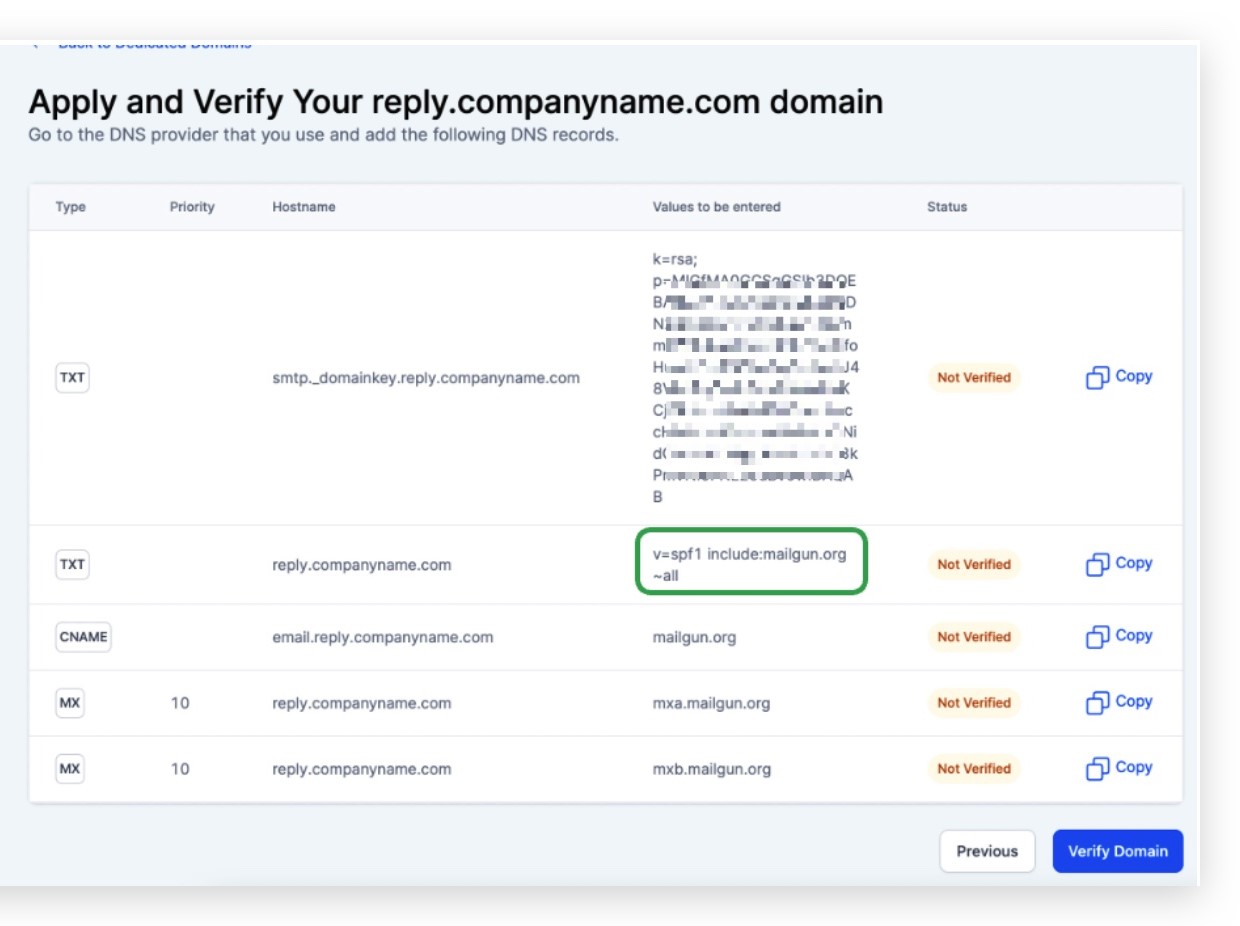
⚠️ This one is unique for every domain. Don’t copy an example—use what your CRM gives you!
DNS RECORD 2: TXT (DKIM Record)
This record helps prevent your emails from being marked as spam.
Step 1: Navigate to your DNS settings in your provider’s dashboard (e.g., SiteGround, GoDaddy) and click + Add Record, as you did previously.
Step 2: Select TXT as the record type (ensure you do not choose CNAME or any other type).
Step 3: Fill in the Name (Host) field carefully:
Copy the beginning portion of the TXT record’s hostname provided by your CRM.
Only include the part before your root domain (do not include your full domain name, such as yourcompany.com).
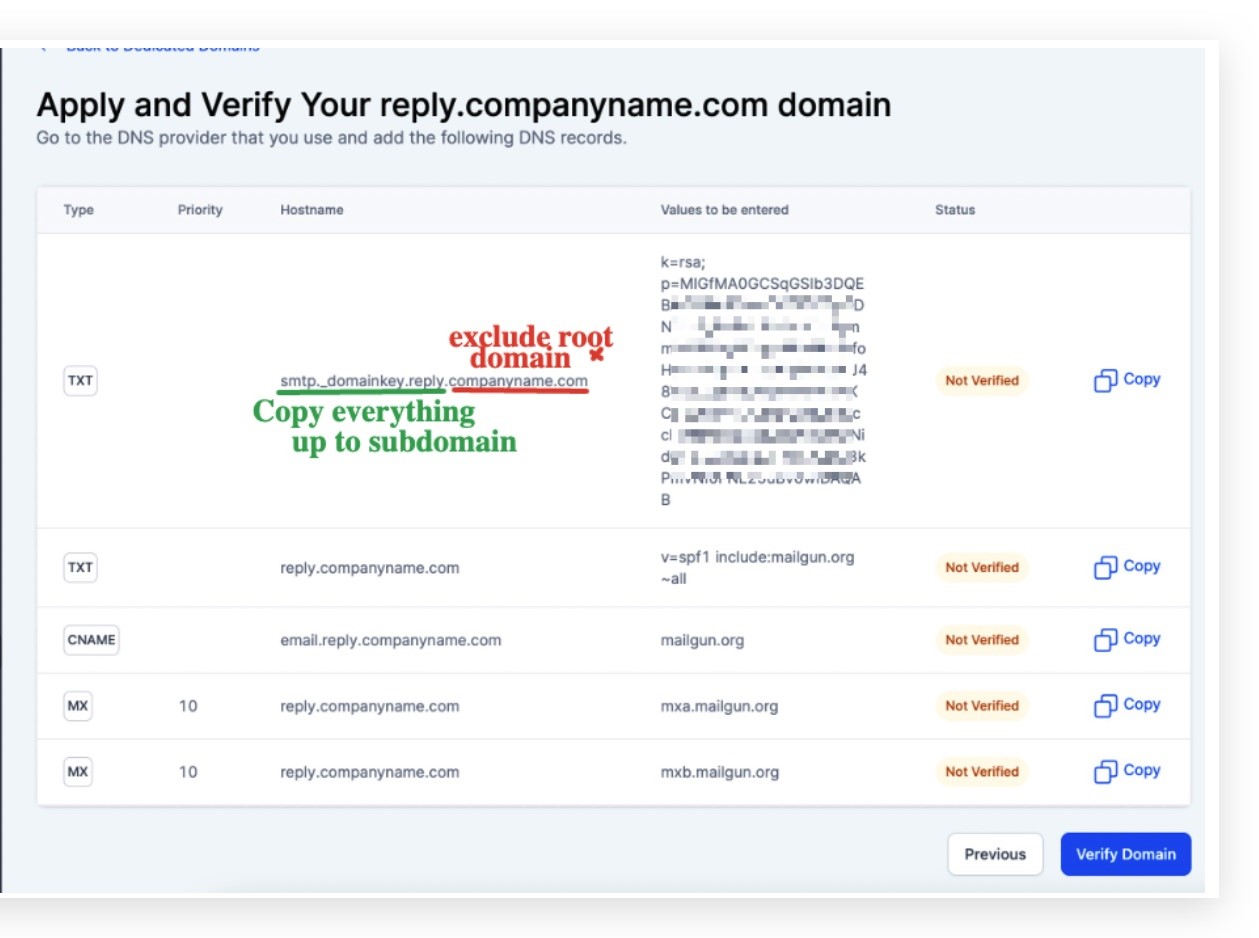
Everyone’s host name is different — make sure to copy exactly what your CRM shows.
Step 4: Add the Value (TXT Data)
Return to your CRM.
Copy the second TXT record value provided.
Paste this value into the Value field in your DNS settings.
This value is typically a long string of letters, numbers, and symbols.

Click Create or Save. You're done with the 2nd record!
DNS RECORD 3: MX (Mail Exchange - #1)
Click the MX tab.
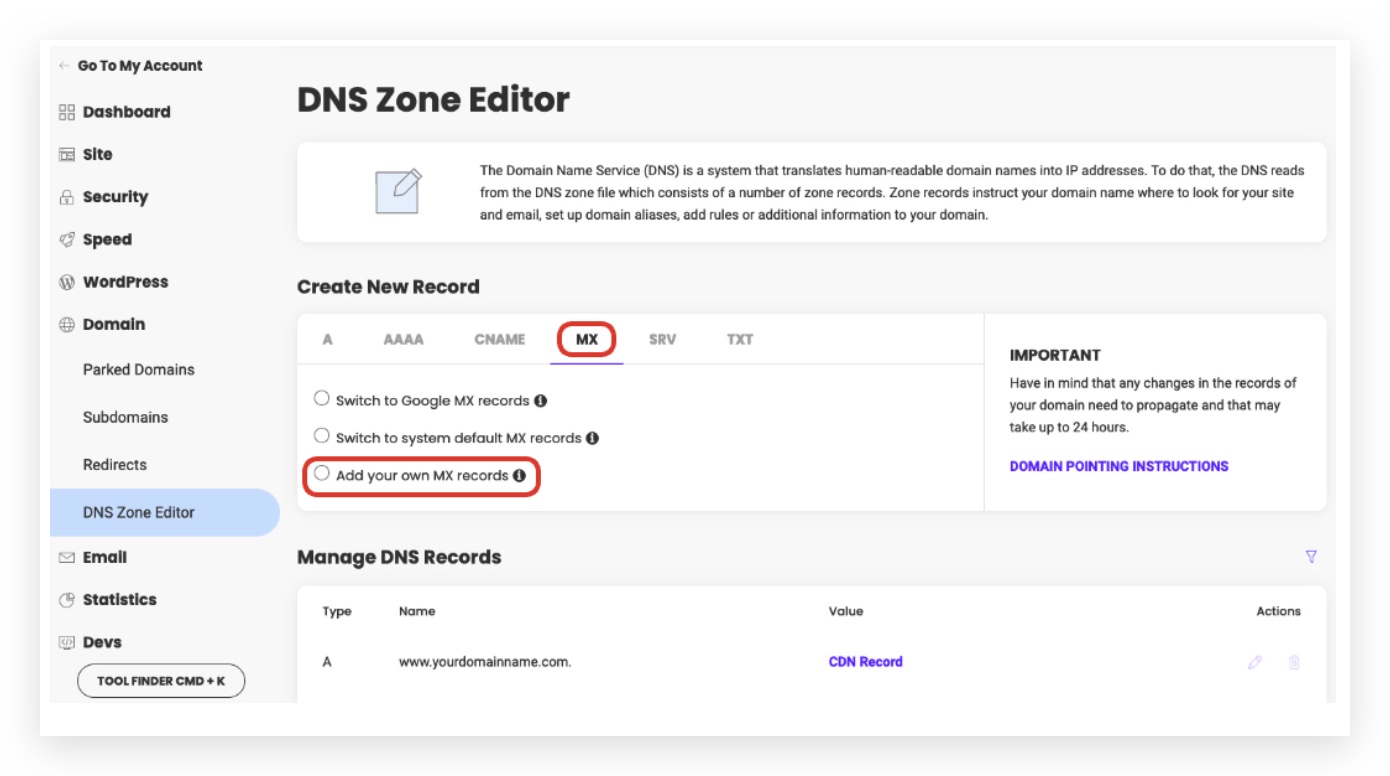
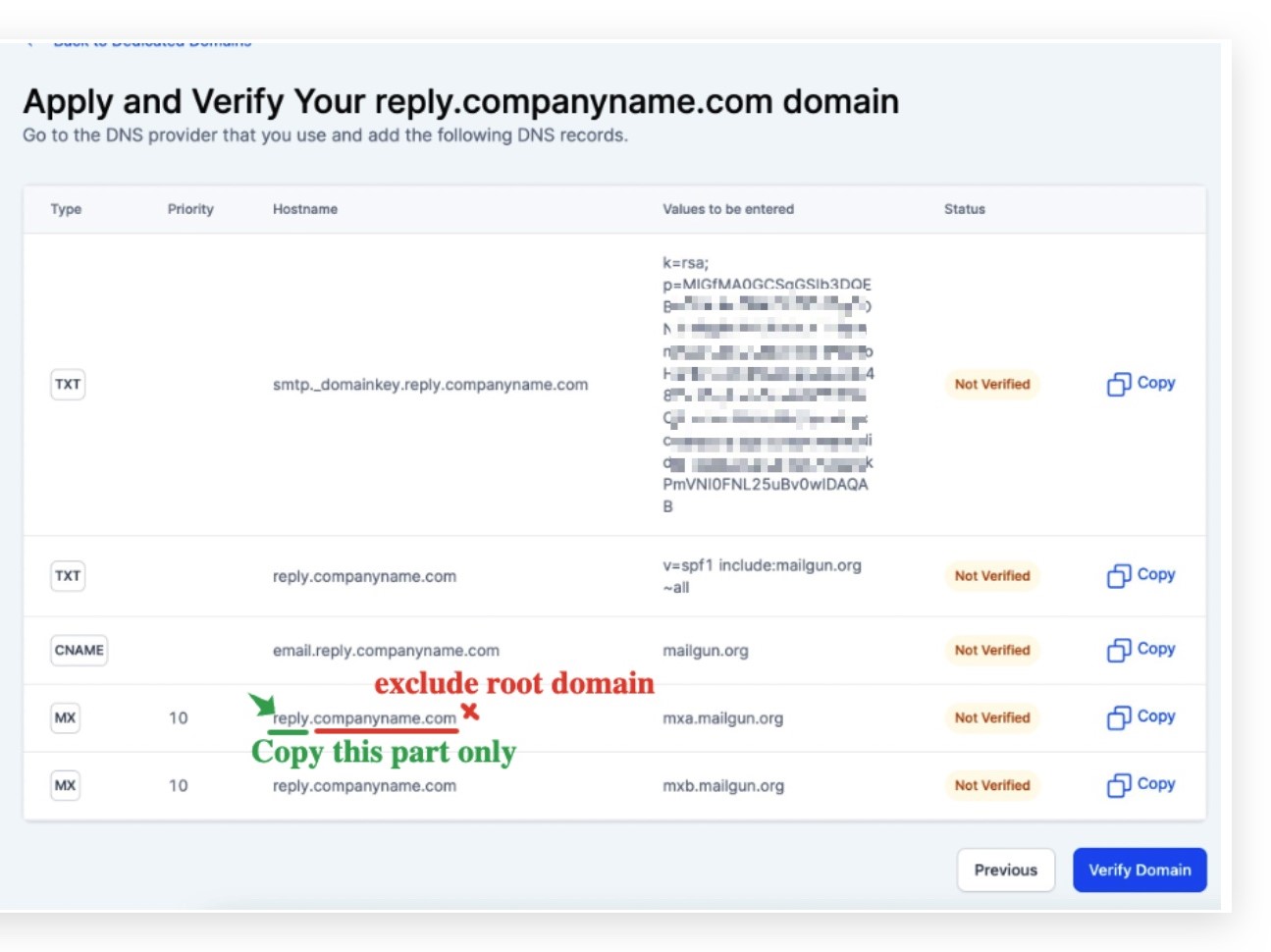
Name: Same as above (
repliesor@)
Priority:
10Destination:
mxa.mailgun.orgClick Create.
DNS RECORD 4: MX (#2)
Repeat the previous step, but:
Destination:
mxb.mailgun.org
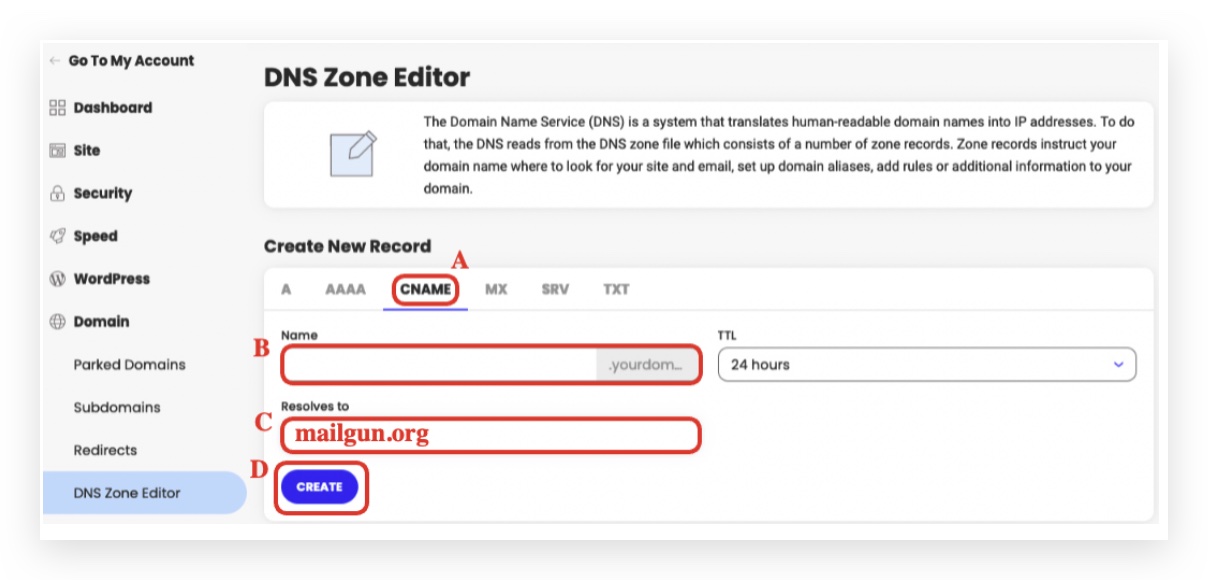
DNS RECORD 5: CNAME
Click the CNAME tab.
Name: Back in CRM, find the CNAME host (usually something like
email.replies)
Resolves To:
mailgun.orgClick Create.
Step 3: Go Back and Verify
Finalizing DNS Verification in Your CRM
Return to your CRM.
Click "Verify DNS Settings".
If any red crosses still appear, wait 10–15 minutes and try again.
Once all records display green checkmarks, your setup is complete and you're ready to proceed.
Extra Step: Add a DMARC Record (Highly Recommended)
This helps email providers trust your domain and improve deliverability.
Platform: SiteGround
Record Type: TXT
Name:
_dmarcValue:
v=DMARC1; p=none; rua=mailto:[email protected]Action: Click Create to save the record
Test Your Email
To send a test email from the CRM, navigate to the Conversations section or select a designated test contact. Send a message using your verified domain to ensure proper configuration. Then, check your inbox to confirm that the email has been delivered successfully and without any spam warnings. For detailed, step-by-step setup instructions, please click the link provided.
Final Checklist
You’re now ready to start emailing from your CRM like a professional.
Troubleshooting
If you’re still encountering errors, double-check that your hostnames match exactly. Make sure all values are copied directly from the Realty Excellence CRM, not from this guide. DNS changes may take up to 24 hours to fully propagate. For those who prefer not to handle the technical setup, our Onboarding Experts will manage everything—so you can stay focused on closing deals.


